

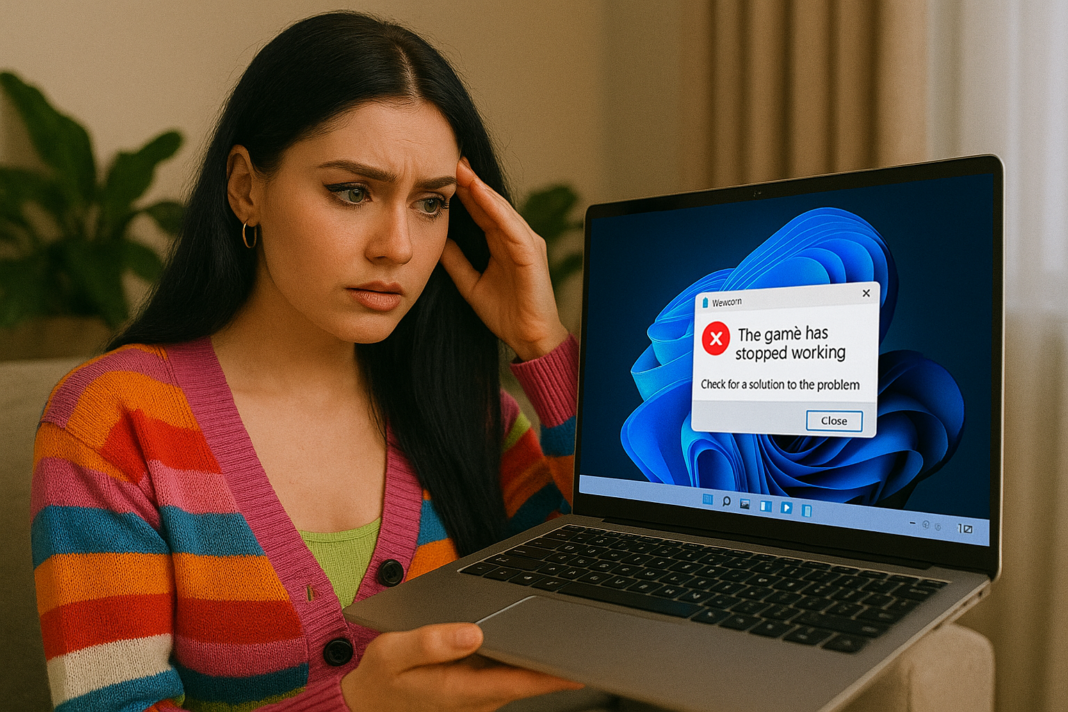


🖥️ Fixing Game Launch Problems on Windows 11: The Complete 2025 Guide for Smooth PC Gaming
There’s nothing quite like the excitement of buying a new game, waiting for it to install, eagerly pressing the Play button… and then absolutely nothing happens 😭🔥. Maybe the game freezes on a black screen, maybe it crashes instantly without error, maybe it shows a vague DirectX message, or maybe you’re stuck in an endless loading loop. Windows 11 is an incredibly capable gaming platform, offering new features like Auto HDR, DirectStorage, improved scheduling for hybrid CPUs, and deep Xbox ecosystem integration, yet even with all those advancements, game launch failures remain one of the most common frustrations players experience.
If you’ve ever clicked Play on Steam, Epic Games, Xbox App, GOG, Ubisoft Connect, Riot, or Battle.net and found yourself staring at a silent desktop instead of the game you were hoping to enjoy, you’re definitely not alone. The good news is that Windows 11 game launch problems are almost always fixable, and once you understand why they happen — from driver conflicts to corrupted files, missing permissions, outdated APIs, broken overlays, unmanaged background processes, and more — the solutions become much easier to apply. This guide tackles everything in a warm, friendly, gamer-to-gamer tone while still delivering deep technical expertise 😊🎮.
⭐ Definition: What Are Game Launch Problems on Windows 11?
Game launch problems occur when a game cannot properly initialize one or more of the subsystems it relies on, including:
• the graphics driver
• the audio engine
• DirectX, Vulkan, or OpenGL APIs
• anti-cheat or launcher services
• CPU/GPU scheduling
• storage access or shader deployment
• user permissions
• Windows security and virtualization settings
If any step in this chain breaks, the game may:
• freeze at startup
• crash immediately
• show black or white screens
• display “not responding”
• fail to open entirely
• revert to desktop silently
• generate cryptic error codes
Windows 11 is more secure and complex than Windows 10, which means launch problems often require more targeted troubleshooting.
⭐ Why Game Launch Problems Matter
When games won’t launch on Windows 11, you lose access to:
• newly purchased titles
• competitive play (Valorant, Apex, CS2, Fortnite, etc.)
• Game Pass PC library
• DLC and expansions
• online events and battle passes
• texture/shader pack updates
• modding support
And since many games rely on scheduled updates, failing to launch can block progress entirely.
⭐ Most Common Causes of Game Launch Problems on Windows 11
1️⃣ Outdated or corrupted GPU drivers
The number one cause of black screens, silent crashes, and DirectX errors.
2️⃣ Damaged game files
Corrupted or missing files prevent engines from loading assets.
3️⃣ Missing DirectX components
Windows 11 ships with DX12, but many games still require DX11 or DX9 redistributables.
4️⃣ Overlays and third-party injectors
Discord, MSI Afterburner, RivaTuner, RGB utilities, and screen recorders often conflict with games.
5️⃣ Windows Virtualization Security
Features like Kernel Isolation and Secure Boot block certain anti-cheat engines.
6️⃣ Outdated system components
Older .NET, Visual C++ runtimes, and Windows modules cause launch failures.
7️⃣ Background processes consuming RAM/CPU
Tasks like Chrome, OBS, or cloud sync tools starve games of resources.
8️⃣ Misconfigured power settings
Laptops especially struggle under power-saving modes.
9️⃣ Corrupted shader cache
Games freeze during shader compilation.
🔟 Storage access issues
Slow HDDs, failing SSD firmware, or permission conflicts prevent asset loading.
⭐ Table: Symptom vs Likely Cause
| Symptom | Likely Cause | Explanation |
|---|---|---|
| Instant crash | GPU driver problem | Game engine cannot start renderer |
| Black screen | DX initialization failure | API mismatch or shader crash |
| Launcher opens but game doesn’t | Anti-cheat block | Kernel driver missing |
| “Game is running” but nothing appears | Overlay conflict | Injection blocked |
| Freezing at logo | Corrupted game files | broken startup scripts |
| Stuck on loading | HDD/SSD bottleneck | slow or failing storage |
| Nothing happens when clicking Play | Admin permissions | restricted executable |
⭐ Full Fix Guide: Solving Game Launch Problems on Windows 11
1. Update Your GPU Drivers (Top Fix!)
Drivers are the backbone of game launches.
NVIDIA
https://www.nvidia.com/Download/index.aspx
Install the latest Game Ready Driver.
AMD
https://www.amd.com/en/support
Install the newest Adrenalin package.
Intel ARC
https://www.intel.com/content/www/us/en/download-center/home.html
ARC GPUs are extremely sensitive to driver versions — always update.
2. Verify Game Files Through the Launcher
Each launcher has a “fix my files” button.
Steam
Library → Right-click game → Properties → Installed Files → Verify Integrity
Epic
Library → Three dots → Verify
Ubisoft Connect
Game → Properties → Verify Files
Xbox App/Game Pass
Settings → Files → Verify & Repair
Corrupted assets are one of the most common causes of launch crashes.
3. Install Required DirectX and Visual C++ Components
Many games require old yet essential redistributables.
DirectX Runtime
https://www.microsoft.com/en-us/download/details.aspx?id=35
Visual C++ Redistributables
https://learn.microsoft.com/en-us/cpp/windows/latest-supported-vc-redist
These libraries plug critical gaps in Windows 11’s default setup.
4. Disable Problematic Overlays
Turn off:
• Discord overlay
• Steam overlay
• NVIDIA GeForce overlay
• Xbox Game Bar
• MSI Afterburner / RivaTuner
• OBS hook
• AMD Recording Overlay
Each of these injects DLLs into games, and some games reject them.
5. Launch the Game as Administrator
Right-click → Run as administrator
Games installed in protected Windows directories often need elevation.
6. Disable Windows Core Isolation (If Anti-Cheat Complains)
Some anti-cheats like Vanguard require deeper kernel access.
Settings → Privacy & Security → Windows Security → Device Security → Core Isolation → Turn Off Memory Integrity
Restart PC.
7. Install Windows Updates
Especially cumulative feature updates containing gaming fixes.
Settings → Windows Update → Check for Updates
Many Game Pass and MS Store games require the latest build.
8. Update Your BIOS and Chipset (Advanced but Effective)
Modern games optimized for hybrid CPUs need updated microcode.
AMD users: install latest chipset driver
Intel users: update Platform Driver through motherboard vendor
9. Clear DirectX Shader Cache
Settings → System → Storage → Temporary Files → Shader Cache → Delete
Fixes launch crashes during shader compilation.
10. Disable Fullscreen Optimizations
Right-click game EXE → Properties → Compatibility → Disable Fullscreen Optimizations
This fixes stutter and launch hangs.
11. Set Power Plan to High Performance
Control Panel → Power Options → High Performance
Or on laptops: set GPU mode to “Maximum Performance.”
12. Move Game to SSD
HDDs often cause:
• missing texture loads
• long black screens
• freezes during launch
Game engines expect SSD-level performance now.
13. Turn Off Virtualization-Based Security Temporarily
Windows 11 relies heavily on VBS, but some engines don’t like it.
Disable via Windows Features:
• Virtual Machine Platform
• Hyper-V
• Memory Integrity
14. Repair or Reset Gaming Services (Game Pass)
PowerShell (Admin):
get-appxpackage Microsoft.GamingServices | remove-appxpackage -allusers
Then reinstall from the Store.
15. Reinstall the Launcher
A broken launcher → broken API calls.
⭐ Additional Fixes for Specific Games
Valorant
• VGC service must launch at boot
• TPM 2.0 and Secure Boot required
• Disable Memory Integrity
Fortnite
• update Easy Anti-Cheat
• reinstall DirectX and Visual C++
GTA V
• conflicting mods break startup
• delete dinput8.dll if using outdated scripts
Elden Ring
• disable Steam Input
• update anti-cheat drivers
⭐ Real-Life Examples of Windows 11 Launch Issues
Example 1: Black Screen After Pressing Play
Cause: outdated NVIDIA driver.
Fix: fresh install with DDU.
Example 2: Game Pass Title Won’t Launch
Cause: broken Gaming Services.
Fix: reinstall via PowerShell.
Example 3: Valorant Refuses to Start
Cause: VBS not compatible with Vanguard.
Fix: disabled core isolation + reboot.
Example 4: Steam Game Opens Then Disappears
Cause: corrupted Visual C++ runtimes.
Fix: installed 2015–2022 package bundle.
⭐ Anecdote: The Game That Vanished Into Thin Air
A friend kept trying to launch Hollow Knight on Windows 11, but every time he clicked Play, the Steam button turned blue for two seconds, then greyed out as if the game had simply given up and evaporated into the universe 😅.
After some digging, we discovered his RivaTuner frame limiter injected itself before the game renderer initialized. Once we disabled RivaTuner, the game launched instantly — proving once again that overlays can be the silent villains of PC gaming.
⭐ Metaphor: Game Launches Are Like Theater Performances 🎭
Imagine a play about to begin. The actors (your hardware) are ready, the script (your game files) is set, and the audience (you) is waiting. But if the lighting technician (GPU driver) or the stage coordinator (DirectX) or the backstage manager (Windows services) fails, the curtain never rises.
Game launches depend on a delicate, synchronized sequence — break one link, and the performance doesn’t start.
⭐ Simple Diagram: How a Game Launch Works on Windows 11
Launcher → Game EXE → DirectX/Vulkan → GPU Drivers → CPU Scheduling → Storage Streaming → Anti-Cheat → Game Window Appears
                                               ↑
                                 Failure here causes 90% of launch issues
⭐ Conclusion
Game launch problems on Windows 11 occur due to outdated GPU drivers, corrupted game files, missing DirectX components, conflicting overlays, anti-cheat restrictions, outdated Windows builds, shader cache issues, power mode limitations, and storage bottlenecks, but with the right steps — updating drivers, verifying files, installing runtimes, disabling overlays, repairing system components, optimizing power plans, and clearing shader caches — you can fix almost every launch issue and enjoy a smooth, stable, and reliable gaming experience 🖥️🎮.
Once you understand the launch sequence, troubleshooting becomes easier, faster, and far less frustrating.
❓ 10 Specific, Niche FAQs About Windows 11 Game Launch Issues
1. Why do some games work on Windows 10 but not on Windows 11?
Security changes, hybrid CPU scheduling, and new API requirements break older engines.
2. Why do Unreal Engine games crash more often at launch?
UE titles rely heavily on shader compilation and updated GPU drivers.
3. Why does disabling overlays fix so many issues?
Overlays inject DLLs into the game process, causing anti-cheat or renderer conflicts.
4. Why do some laptop games refuse to launch unless plugged in?
Power-saving GPU limits prevent proper initialization.
5. Why does a fresh Windows install fix everything?
It removes corrupted runtimes, registries, and broken drivers.
6. Why do games disappear after clicking Play with no errors?
A hidden crash occurs before the crash handler loads.
7. Why does VBS affect anti-cheat?
Virtualization traps kernel-level access required by some anti-cheats.
8. Why does my game run in the background but not show a window?
Fullscreen optimizations or multi-monitor windowing bugs.
9. Why does Windows 11 require so many Visual C++ versions?
Different games depend on different toolchain builds.
10. Why does clearing shader cache fix launch freezes?
It forces games to rebuild corrupted shaders.
🤔 People Also Asked
1. Why do Windows 11 cumulative updates break game launches sometimes?
They replace system DLLs and runtime dependencies.
2. Why does Game Pass PC have more launch issues than Steam?
Game Pass uses complex encrypted packages and Windows services.
3. Why does DirectX12 fail while DX11 works?
DX12 requires strict driver compatibility.
4. Why do anti-cheats block older drivers?
Security risk — outdated drivers allow kernel exploits.
5. Why do some launchers freeze on Windows 11 but games run fine?
Electron-based launchers break from cached tokens.
You should also read these…
- hogwar.com – fun and educational activities for rainy days
- sixrep.com – tiktok action could not be completed warning
- axtly.com – customized industrial shelving systems for every n
- getaluck.com – from floor to ceiling full comfort with floorlayer
- beofme.com – high performance water pumps for industrial sector
- olddry.com – comparing traditional insulation materials vs durf
- getaluck.com – double audio problem on tiktok videos
- olddry.com – why fake meat might be worse than the real thing
- spyfrogs.com – 7 cybersecurity threats every business should know
- axtly.com – engagement dropped algorithm signals and a 10 poin